
Introduction
Understanding how managed IT support improves dental office operations starts with a simple reality: a dental practice cannot function smoothly when its technology is unreliable. Scheduling, digital radiography, treatment planning, insurance claims, e-prescribing, payment processing, and patient communication all depend on connected systems.
When a workstation freezes at check-in or an imaging device cannot send images to a clinical workstation, the result is more than an IT ticket. It can mean delayed appointments, frustrated patients, manual workarounds, and lost production time.
Managed IT support gives dental offices an ongoing technology partner responsible for monitoring, maintenance, cybersecurity, backups, support coordination, and technology planning. Rather than waiting for equipment or software to fail, the provider works to identify risks before they interrupt patient care.
TL;DR Summary
Managed IT support can improve dental operations by keeping clinical and administrative technology available, protecting electronic patient information, reducing staff troubleshooting time, and creating tested recovery plans for outages. The strongest dental IT plans are built around the workflows that matter most: check-in, scheduling, imaging, clinical documentation, billing, and communication.
Key Takeaways
• Downtime affects both care delivery and revenue. A dental IT plan should prioritize the systems needed to see, document, and bill patients.
• Security supports operational continuity. Access controls, patching, endpoint protection, and tested backups can reduce the likelihood and impact of disruptions.
• Backup storage is not enough. Dental offices need verified recovery procedures that show how quickly critical systems can be restored.
• Vendor coordination matters. A capable dental IT provider should help distinguish network, workstation, imaging, and software-vendor responsibilities.
• Standardization helps multi-location practices scale. Consistent device configurations, software versions, and support procedures can reduce avoidable variation between offices.
Table of Contents
| Section | What It Covers |
|---|---|
| Workflow continuity | How IT support prevents common clinical and front-office interruptions |
| Security and compliance | How safeguards protect ePHI while reducing operational disruption |
| Dental technology integration | Support for practice-management software, imaging, and vendor coordination |
| Continuity planning | What to do when internet, power, or backup systems fail during patient hours |
| Choosing and measuring support | Service expectations, onboarding, KPIs, and selection criteria |
| FAQ | Direct answers to common dental managed IT questions |
Keep Clinical and Administrative Workflows Moving
Managed IT support improves operations when it is aligned with the exact points where a dental office can stall. A generic promise of “less downtime” is not enough. The provider should understand what happens when scheduling, imaging transfer, claims submission, or user access fails.
Separate Clinical Uptime From Administrative Uptime
Clinical uptime and administrative uptime overlap, but they are not identical.
Clinical uptime involves the systems used to deliver care, such as digital radiography workstations, intraoral camera software, treatment-planning tools, operatory computers, and electronic documentation. Administrative uptime supports scheduling, check-in, eligibility checks, billing, communications, and payment processing.
| Workflow Area | Example Failure Point | Operational Effect | Managed IT Focus |
|---|---|---|---|
| Front desk | Practice-management software cannot connect | Delayed check-in and scheduling | Network monitoring, workstation support, vendor escalation |
| Clinical care | Imaging workstation cannot transfer radiographs | Delayed diagnosis or treatment discussion | Device compatibility, driver management, network troubleshooting |
| Billing | Claims transmission fails | Delayed reimbursement workflows | Software connectivity, secure internet access, support coordination |
| Communications | Cloud email account is compromised or unavailable | Delayed patient and vendor communication | Identity protection, email security, account recovery |
| Records access | Staff cannot log in to patient systems | Appointment disruption and manual workarounds | Access management, password support, identity verification |
We recommend identifying the practice’s “cannot-fail” workflows before selecting a service plan. For many offices, those are patient check-in, access to the clinical schedule, imaging availability, chart access, and reliable internet connectivity.
Reduce the Time Staff Spend Troubleshooting
When office staff are responsible for restarting computers, reconnecting printers, resolving login issues, or calling multiple vendors, technology problems become an unpaid second job. Managed support shifts that burden to a dedicated support process.
This works best when the provider has remote access procedures, a documented device inventory, known contacts for major software vendors, and clear escalation paths. Remote help desk support can resolve many routine issues quickly, while onsite support may be necessary for equipment failures, cabling problems, imaging hardware, or network appliances.
For offices evaluating dental managed IT services, ask how routine tickets are triaged and which issues require onsite dispatch. A provider that promises rapid support but cannot explain its escalation process may leave the practice guessing during a patient-day outage.
Prevent Small Technology Problems From Becoming Appointment Disruptions
Proactive maintenance does not eliminate every failure. Hardware ages, internet providers have outages, and software updates occasionally create conflicts. Its value is reducing the number of surprises that reach the front desk or operatory.
A practical managed IT process commonly includes:
- Monitoring servers, workstations, storage capacity, network equipment, and security alerts.
- Applying patches through a planned process that considers dental software compatibility.
- Reviewing failed backups and storage alerts before recovery is needed.
- Replacing aging devices before their failure becomes an emergency.
- Documenting technical dependencies, including imaging drivers and vendor support contacts.
Fair warning: automatic patching without coordination can create its own problems in a dental environment. An imaging workstation may depend on a specific driver version, operating system setting, or software release. The right approach is controlled maintenance, not simply updating everything at once.
Strengthen Security Without Slowing Down the Office
Cybersecurity is often treated as a compliance issue separate from operations. In practice, the two are connected. A compromised email account, ransomware event, unauthorized remote-access tool, or locked user account can stop scheduling and clinical work just as effectively as a hardware failure.
Build HIPAA-Aligned Safeguards Into Daily Work
Dental practices that create, receive, maintain, or transmit electronic protected health information must account for the HIPAA Security Rule safeguards designed to protect ePHI. The U.S. Department of Health and Human Services explains these requirements through its HIPAA Security Rule guidance.
Managed IT support can help operationalize these safeguards through documented processes and technical controls, including:
• Unique user accounts instead of shared logins
• Appropriate access permissions for clinical, administrative, and external users
• Managed endpoint protection and patching
• Firewall and secure remote-access administration
• Audit logging and review procedures
• Backup monitoring and recovery planning
The goal is not to add unnecessary barriers. It is to make access predictable, traceable, and safer. For example, a new employee should receive the access needed for their role without receiving administrator rights that could expose sensitive systems or increase the impact of a phishing incident.
Use Identity Controls to Limit Unauthorized Access
Access control is a practical operational safeguard. When the wrong person can access the wrong system, the office may face a privacy issue, an account compromise, or a disruption caused by unauthorized changes.
NIST’s Digital Identity Guidelines describe identity assurance and access-control concepts relevant to reducing unauthorized access. In a dental office, that can translate into stronger sign-in practices, multi-factor authentication where appropriate, account lifecycle management, and prompt removal of access when staff roles change.
| Access Situation | Recommended Control | Why It Helps Operations |
|---|---|---|
| New employee onboarding | Role-based account setup | Reduces delays and avoids over-permissioning |
| Staff departure | Prompt account disablement | Limits risk from unused credentials |
| Vendor remote support | Time-limited, approved remote access | Reduces uncontrolled third-party access |
| Cloud email login | Multi-factor authentication | Helps limit account takeover risk |
| Shared workstation | Individual user logins where feasible | Improves accountability and traceability |
Treat Cybersecurity Incidents as Continuity Events
A ransomware incident is not only a security event. It is a patient-care and business-continuity event. The same is true when a phishing attack compromises cloud email or a malicious program locks a workstation used for check-in.
A useful incident response plan should define:
- Who staff should contact first.
- Which systems should be isolated to limit spread.
- How the practice continues patient communication and documentation during disruption.
- Who coordinates with software vendors, insurers, legal counsel, or other stakeholders when needed.
- How systems are restored and validated before normal operations resume.
Integrate Dental Systems and Clarify Vendor Accountability
Dental offices often depend on a mix of technology vendors: practice-management software, imaging platforms, hardware dealers, internet providers, cloud email providers, payment processors, and equipment manufacturers. When an issue crosses those boundaries, a practice can get stuck between vendors.
Support the Systems That Drive Patient Flow
A dental IT provider should understand the operational importance of the technology stack, not just the network. Common systems that may need coordinated support include:
• Practice-management and patient-management systems
• Digital radiography and imaging workstations
• Operatory computers and clinical charting devices
• Servers, network switches, wireless access points, and firewalls
• Cloud email and collaboration platforms
• Printers, scanners, payment devices, and patient communication tools
• Backup platforms and recovery infrastructure
The appropriate scope depends on the practice’s technology. A single-location office with cloud-hosted software has different needs than a multi-site group with local servers, several imaging modalities, and centralized reporting.
Know Who Owns the Problem
A managed IT provider cannot always fix a proprietary software defect or a failed imaging sensor. However, the provider should be able to identify where the problem most likely sits, gather useful technical evidence, and coordinate the next step.
| Problem Type | Primary Owner | Managed IT Provider’s Role |
|---|---|---|
| Network outage inside the office | IT provider | Diagnose switches, firewall, Wi-Fi, cabling, and local connectivity |
| Internet service failure | Internet provider | Confirm the issue, provide evidence, coordinate escalation, support fallback options |
| Practice-management software defect | Software vendor | Verify local systems, logs, connectivity, and assist vendor troubleshooting |
| Imaging hardware failure | Equipment dealer or manufacturer | Check workstation, driver, network, and software dependencies before dispatch |
| User access problem | IT provider and software administrator | Restore access using approved identity and permission procedures |
This distinction matters because “call the software vendor” is not a complete response when the root cause could be a network change, failed workstation, expired certificate, driver conflict, or blocked connection.
For broader planning around systems, support models, and technology needs, review available dental IT services in the context of your office’s actual workflow dependencies.
Manage Imaging Compatibility Carefully
Digital imaging can be especially sensitive to compatibility issues. A new workstation, operating system update, scanner driver, display setting, or network policy may affect image capture or transfer.
Before major changes, we recommend confirming:
- The supported operating system and hardware requirements for each imaging application.
- The required drivers, sensors, capture devices, and network dependencies.
- Whether updates should be tested on a noncritical workstation first.
- The availability of vendor support if a rollback is needed.
- The recovery plan if the imaging workstation becomes unavailable during patient hours.
Consider an office replacing five aging front-office computers. That may be straightforward. Replacing an imaging acquisition workstation is different: the project should include compatibility checks, data migration planning, image-display validation, and a tested fallback plan before the old system is removed.
Prepare for Internet, Power, and Recovery Failures
A backup is valuable only when it can be restored within a timeframe that works for the practice. Likewise, an internet backup is useful only if staff know what functions will continue and what must be handled manually.
Verify Backups Instead of Assuming They Work
Backup verification means checking whether protected data and systems can actually be restored. It is more meaningful than seeing a green “backup completed” status message.
NIST’s Contingency Planning Guide for Federal Information Systems emphasizes tested backup and recovery planning for restoring operations after outages or incidents. While each dental practice has different systems and recovery needs, the underlying lesson is clear: recovery should be tested before an emergency.
| Recovery Question | Why It Matters | Example Decision |
|---|---|---|
| What is backed up? | Not every system is protected by default | Include patient data, configuration records, and critical documents |
| How often is it backed up? | Recent changes may be lost after an outage | Match backup frequency to the practice’s tolerance for data loss |
| How quickly can it be restored? | Recovery time affects appointment operations | Set priorities for scheduling, charts, imaging, and billing |
| Has restoration been tested? | A backup can fail silently | Schedule controlled restoration tests |
| Is a copy protected from ransomware? | Attackers may target connected backups | Use protected or isolated backup options as appropriate |
Plan for Graceful Degradation During Patient Hours
No plan can make every service available during a major outage. A practical continuity plan identifies what the office can do safely with limited systems and what should pause.
For example, if the internet fails but local systems remain available, the practice may still be able to access certain records while postponing online eligibility checks or cloud communications. If the practice-management platform is cloud-based and inaccessible, the team may need a documented manual intake and scheduling process until service returns.
A patient-hour continuity plan should address:
• Alternate internet options, such as a managed cellular failover connection where appropriate
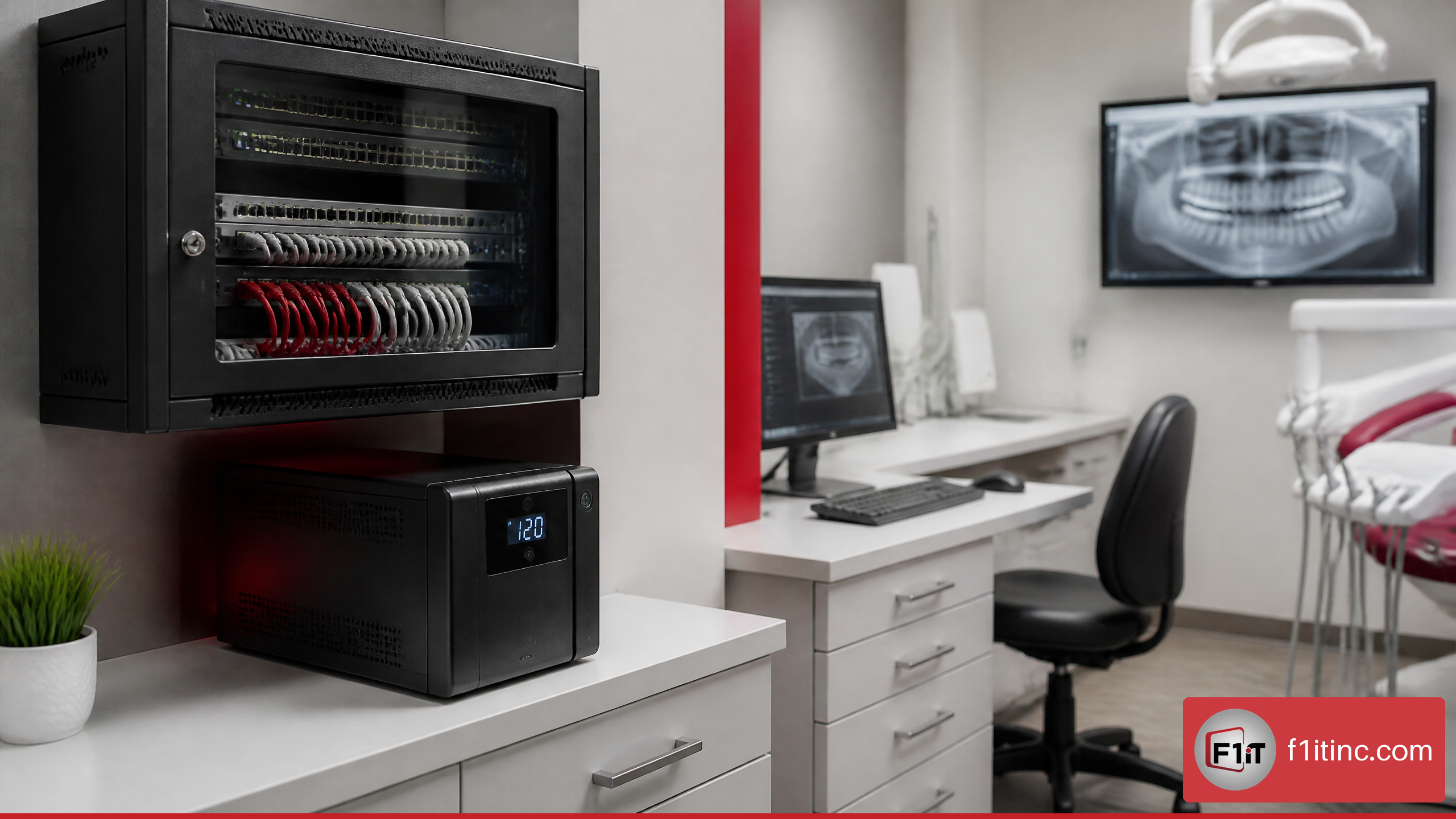
• Battery backup coverage for critical networking equipment and orderly shutdown procedures
• A paper or offline process for essential patient information and appointment tracking
• Clear rules for clinical documentation when systems are unavailable
• A communication plan for patients if schedules must be adjusted
Use Lifecycle Planning to Avoid Emergency Replacements
Aging workstations, unsupported operating systems, failing hard drives, and underpowered servers can create preventable disruption. Lifecycle planning spreads replacement decisions across a predictable schedule instead of waiting for an urgent failure.
This is especially useful when a practice is opening an operatory, acquiring another office, moving locations, or standardizing multiple sites. The decision is not simply “replace old hardware.” It is deciding which systems create the greatest operational risk if they fail and replacing those first.
Measure Results and Choose the Right Support Model
Managed IT should be evaluated by operational outcomes, not just by the number of tickets closed. Exact industry benchmarks vary, and there is limited independent evidence establishing universal response-time or uptime targets for dental MSPs. Your practice should therefore define goals based on its own patient volume, hours, technology stack, and risk tolerance.
Track KPIs That Connect IT to Office Operations
A useful monthly or quarterly review can include both technical and operational indicators.
| KPI | What It Reveals | Practical Use |
|---|---|---|
| Critical system downtime | Duration of patient-impacting disruptions | Identify recurring failure points |
| Urgent ticket response time | Speed of initial support engagement | Assess whether support meets patient-hour needs |
| Time to resolution | How long issues remain open | Separate quick fixes from recurring problems |
| Backup success and restore-test status | Recovery readiness | Confirm backups are usable, not merely stored |
| Patch and endpoint protection status | Security maintenance consistency | Identify unmanaged devices or overdue updates |
| Repeated ticket categories | Root causes of staff friction | Prioritize training, replacement, or process changes |
| Device age and warranty status | Upcoming hardware risk | Budget replacements before failures occur |
A helpful interpretation matters. If ticket volume rises briefly after onboarding because undocumented devices are discovered and stabilized, that is not automatically a negative result. If the same printer, imaging workstation, or Wi-Fi issue appears month after month, the practice should expect a root-cause plan rather than repeated temporary fixes.
Compare Managed IT and Break-Fix Support
The right model depends on how much the practice relies on technology, how predictable it needs IT spending to be, and how much internal staff can realistically manage.
| Consideration | Managed IT Support | Break-Fix IT Support |
|---|---|---|
| Service approach | Ongoing monitoring, maintenance, and support | Assistance after a problem occurs |
| Cost structure | Often recurring and more predictable | Often variable by incident, labor, or project |
| Best fit | Practices dependent on connected clinical and administrative systems | Very small environments with limited technology needs and low urgency |
| Security maintenance | Typically included or coordinated | May be addressed only when requested |
| Backup oversight | Can include monitoring and recovery planning | May be limited to installation or emergency restoration |
| Strategic planning | Often includes lifecycle and budget guidance | Usually project-by-project |
Break-fix may be reasonable for a low-complexity environment with minimal patient-data systems and an internal person who can manage routine technology. It becomes less suitable when the office relies on imaging, multiple workstations, cloud accounts, remote access, or multi-location infrastructure.
Evaluate the First 30 to 90 Days of Onboarding
A strong onboarding process should not begin with broad promises. It should begin with discovery, documentation, risk prioritization, and validation.
| Timeframe | Focus | Expected Output |
|---|---|---|
| First 30 days | Inventory, access review, network assessment, backup review | Device list, risk findings, support contacts, immediate remediation priorities |
| Days 31 to 60 | Monitoring deployment, patching baseline, security improvements | Managed devices, alerting, access-control improvements, documented procedures |
| Days 61 to 90 | Recovery testing, lifecycle planning, workflow optimization | Restore-test evidence, technology roadmap, recurring review process |
Choose a provider that can explain what it will document, what it will remediate first, and how it will validate results. Avoid providers that offer a one-size-fits-all plan without asking about imaging systems, practice-management software, existing backups, user access, or patient-hour procedures.
Frequently Asked Questions
What does managed IT support do for a dental office, and how does it reduce downtime?
Managed IT support oversees the technology that supports dental operations, including workstations, networks, servers, cloud services, cybersecurity tools, backups, and support requests. It reduces downtime by monitoring for problems, performing maintenance, addressing alerts, and providing a defined support path when an issue affects patients or staff.
The most effective approach prioritizes critical workflows. For example, a failure that prevents access to the schedule at 8:00 a.m. should receive a different response priority than a noncritical software question after office hours.
Which dental systems should managed IT support cover, including imaging and front-desk tools?
The plan should cover or coordinate support for systems that affect patient care, documentation, scheduling, billing, and communications. That commonly includes practice-management software, digital imaging workstations, network equipment, cloud email, computers, printers, backups, and user accounts.
The scope should be documented. Some vendors retain responsibility for proprietary application defects or equipment repairs, but the IT provider should help isolate the issue and coordinate escalation rather than leaving staff to determine which vendor to call.
How does managed IT support help with HIPAA security, backups, and internet outages?
Managed IT can help implement and maintain HIPAA-aligned technical safeguards, such as access management, endpoint protection, patching, firewall administration, audit-supporting controls, and secure remote access. It can also monitor backups, conduct restoration testing, and build a continuity plan for internet or power failures.
The key decision is whether the provider validates recovery. A backup plan that has never been tested creates uncertainty. For instance, an office may discover during an outage that its patient files were copied successfully but cannot be restored quickly enough to support the day’s appointments.
Is managed IT better than break-fix support, and how should a multi-location group measure success?
Managed IT is usually the stronger choice for practices that depend heavily on digital clinical and administrative systems, need consistent cybersecurity maintenance, or operate multiple locations. Break-fix support may cost less in quiet periods, but it can be less predictable during urgent failures.
Multi-location groups should measure success through critical downtime, response and resolution times, repeat incidents, restore-test results, standardization progress, and device lifecycle status. For answers to additional operational and technology questions, visit the dental IT FAQ.
Conclusion
Managed IT support improves dental office operations when it is built around patient flow, clinical uptime, secure access, recovery readiness, and clear accountability across vendors. The best plan does more than respond to tickets. It helps the practice prevent avoidable disruptions, recover from the disruptions that still occur, and make technology decisions before they become emergencies.
If your office is evaluating a managed IT partner, begin with a workflow review: identify the systems that cannot fail during patient hours, confirm how they are protected, and ask how recovery will be tested. That is where reliable technology becomes something genuinely worth smiling about.
Sources/References
• U.S. Department of Health and Human Services — Security Rule
• National Institute of Standards and Technology — Digital Identity Guidelines