
Introduction
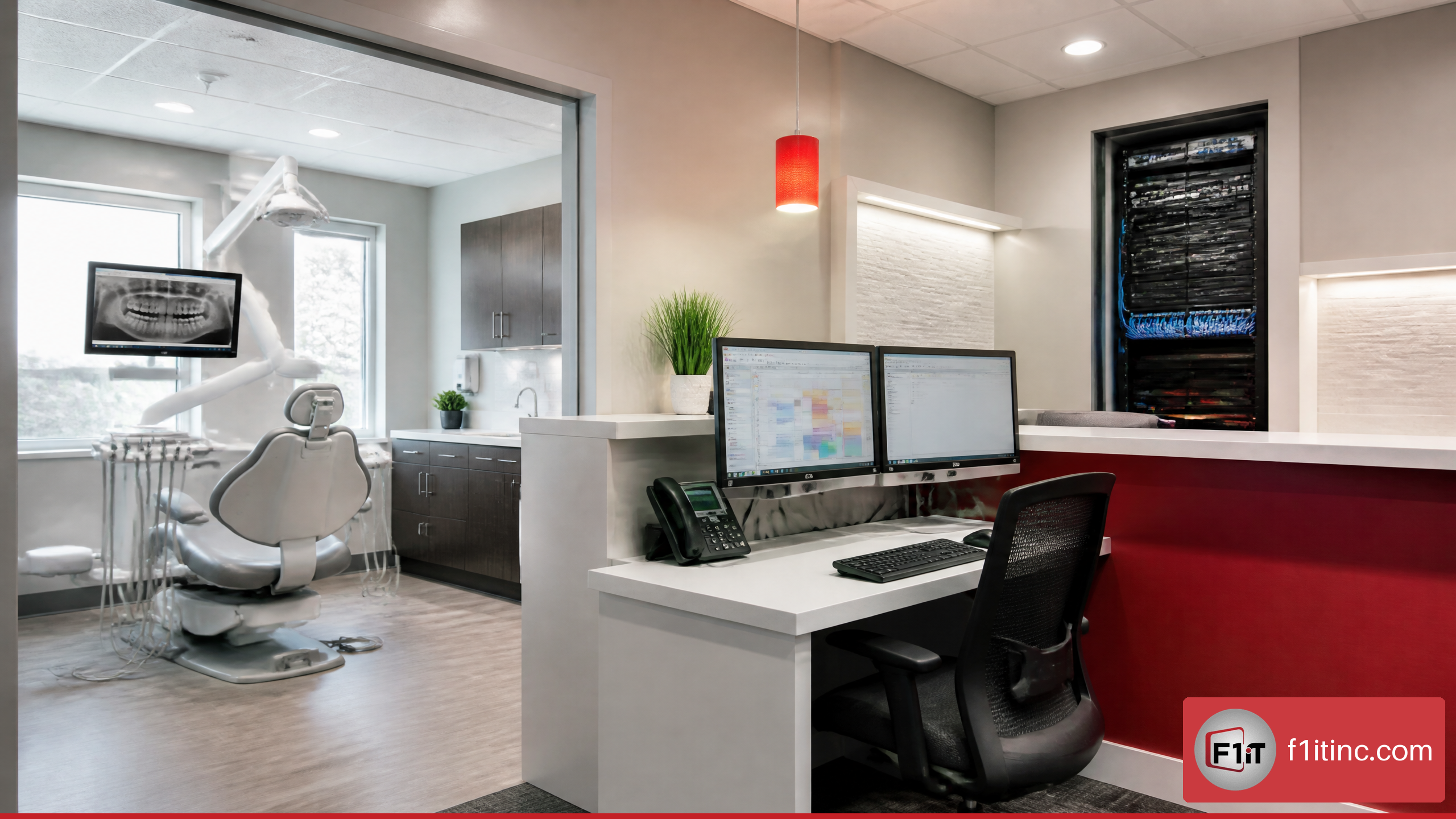
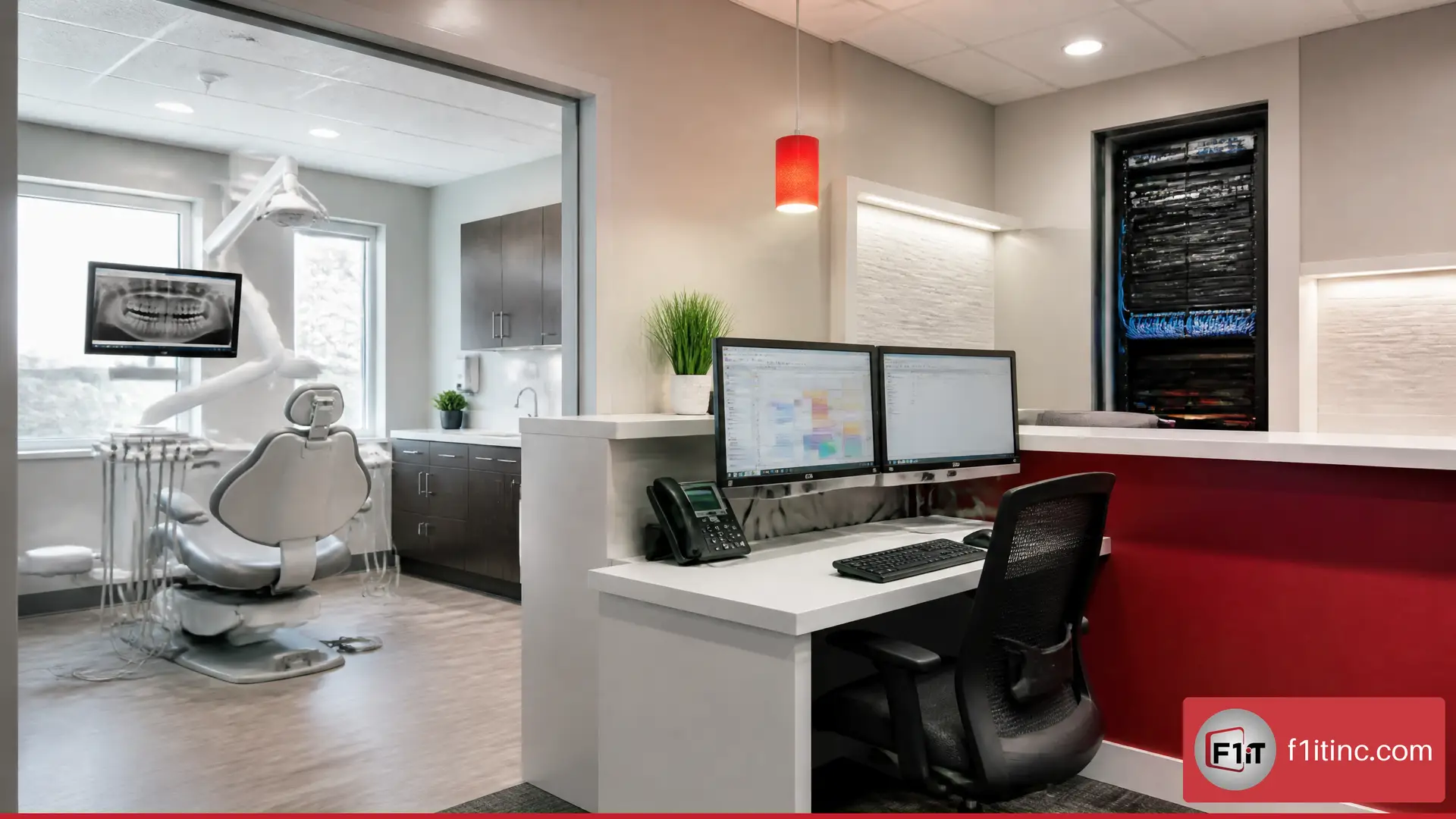
Learning how to plan computers networks and software for a new dental office starts well before equipment arrives. The decisions made while walls are open affect patient flow, imaging performance, privacy safeguards, support costs, and how easily the practice can grow.
I recommend treating technology as part of the office design—not as a final purchasing task. Start with the clinical workflow, select software and imaging systems that fit it, then design the network, computers, cabling, security controls, and recovery plan around those requirements.
A thoughtful plan also prevents a common buildout problem: discovering after opening that an imaging device needs a dedicated workstation, a consult room needs better display capability, or the guest Wi-Fi shares infrastructure with systems containing patient information.
TL;DR Summary
• Choose practice management and imaging software before finalizing computer specifications.
• Use wired Cat6 connections for operatories, imaging devices, front-desk workstations, printers, and network equipment.
• Separate clinical, administrative, staff, guest, and IoT traffic with VLANs or equivalent network policies.
• Obtain Business Associate Agreements before cloud vendors or IT providers handle ePHI.
• Define recovery priorities separately for scheduling, imaging, communications, and backups.
• Test every workflow before opening day, including imaging capture, printing, phones, backup restoration, Wi-Fi isolation, and remote support.
Key Takeaways
| Decision area | Practical recommendation | Why it matters |
|---|---|---|
| Practice software | Select the practice management system before buying most computers | It determines integrations, browser requirements, server needs, and user workflows |
| Imaging | Confirm hardware, driver, and software compatibility in writing | Imaging platforms are not universally interchangeable |
| Network | Use a business firewall, managed switch, business Wi-Fi access points, and structured cabling | These components support segmentation, reliability, and controlled access |
| Workstations | Match PC capability to the room’s actual workflow | A CBCT or CAD/CAM station may need a dedicated GPU, while standard charting stations may not |
| Security | Use unique accounts, MFA, endpoint protection, logging, patching, and encrypted remote access | These controls reduce avoidable exposure to ePHI and ransomware |
| Recovery | Set separate RTO and RPO targets for critical systems | Scheduling may need rapid recovery, while archives may have different restoration priorities |
Table of Contents
- Plan the office around workflow and software
- Design computers and infrastructure by room
- Build a segmented, resilient dental network
- Put HIPAA, vendor access, and recovery planning in place
- Test and document the environment before opening
- Frequently asked questions
Plan Software Before Buying Hardware
Build an application inventory based on patient-data exposure
Start with a software inventory, not an equipment list. A dental office can have multiple systems that create, receive, maintain, or transmit electronic protected health information, or ePHI. Those systems may include practice management software, imaging applications, patient communication platforms, cloud file storage, payment integrations, VoIP services, e-prescribing tools, and remote-support tools.
For each application, document four practical points:
• Whether it handles ePHI
• Which users need access
• Which outside systems it connects to
• Whether it requires local storage, a server, a browser, or a dedicated workstation
This approach helps avoid a weak assumption: that only the clinical computers require protection. A front-desk workstation with patient scheduling, email, scanned insurance documents, and payment workflows may have substantial exposure too.
NIST’s HIPAA implementation guidance identifies risk analysis as the foundation for selecting appropriate safeguards. In practical terms, inventorying systems by ePHI exposure gives the office a defensible starting point for access controls, network segmentation, backups, and vendor oversight.
Choose practice management and imaging systems as a pair
Practice management software anchors scheduling, charting, billing, patient records, and reporting. Imaging software must then work cleanly with the chosen practice management platform and the selected x-ray, sensor, panoramic, CBCT, or intraoral camera equipment.
Before signing an agreement, request a written compatibility review that covers the following:
| Compatibility check | What to confirm | Failure to avoid |
|---|---|---|
| Practice management integration | Whether images can be launched or attached from the patient record | Staff switching between disconnected applications |
| Imaging hardware support | Supported sensor, panoramic, CBCT, and camera models | Buying hardware that requires replacement software |
| Operating system support | Supported Windows versions and driver requirements | A new PC that cannot run a legacy imaging driver |
| Workstation specifications | GPU, RAM, storage, display resolution, and USB requirements | Underpowered CBCT or CAD/CAM workstations |
| Network storage | Whether images are stored locally, on a server, or in the cloud | Slow image retrieval or unprotected local storage |
| Upgrade process | Who validates upgrades to the imaging stack | A software update interrupting clinical imaging |
A useful rule is simple: do not treat “compatible” as a marketing label. Ask whether the exact software version, imaging device model, operating system, and integration module are supported together.
Decide between cloud-based and server-based systems
Cloud-based practice management software can reduce on-site server requirements, but it does not eliminate the need for a well-designed network. The office still needs reliable internet, wired clinical workstations, secure Wi-Fi, endpoint protection, printing, imaging connectivity, backups where applicable, and a plan for internet outages.
| Option | Choose it when | Avoid or reconsider it when | Planning implications |
|---|---|---|---|
| Cloud-based practice management | The practice wants less local server maintenance and vendor-hosted application delivery | Internet reliability is poor or critical workflows cannot tolerate an outage without a contingency plan | Prioritize redundant connectivity where practical, MFA, browser standards, and local outage procedures |
| Server-based practice management | Required integrations, imaging workflows, or existing systems depend on a local server | The office lacks a secure server location, backup plan, or support capacity | Plan server hardware, UPS power, environmental protection, local backups, off-site recovery, and patching |
| Hybrid model | Some imaging or specialty systems require local components while core workflows are cloud-based | The office cannot document data ownership and support boundaries | Clearly map where data resides and which vendor supports each component |
For a new office, cloud-based software may be a sensible option when the workflow fits it. However, it should be selected based on clinical and operational requirements—not solely because it removes a server from the floor plan.
Design Computers and Infrastructure by Room
Count workstations by workflow, not by rooms alone
A six-operatory office does not automatically need six identical computers. The right count depends on how the practice intends to use each room on day one and how expansion will occur later.
| Area | Typical technology needs | Planning note |
|---|---|---|
| Front desk | Scheduling PCs, payment devices, scanners, printers, phones, dual displays | Plan enough stations for peak check-in and check-out periods |
| Operatories | Clinical workstations, imaging access, patient displays, intraoral camera connections | Use wired connections and match PC power to imaging needs |
| Consult room | High-resolution display, presentation workstation, possible 3D imaging capability | This is often a sensible location for a higher-performance computer |
| Doctor’s office | Administrative PC, secure remote access, reporting, possible CBCT review | Separate personal convenience from required clinical performance |
| Sterilization | Device documentation access, possible printer or scanner access | Keep equipment placement and cable paths clear of workflow constraints |
| Imaging room | Dedicated acquisition workstation, imaging hardware, secure network connectivity | Confirm vendor requirements before construction is finalized |
| Server and network area | Firewall, managed switch, patch panels, UPS units, possible server or NAS | Use a secure, ventilated, access-controlled location |
For example, a practice using CBCT and CAD/CAM may need dedicated GPU-capable computers in the imaging room, consult room, or doctor’s office. Standard operatories used primarily for charting and image viewing may not need that same specification. Buying high-end 3D machines for every operatory can add cost without improving the workflow.
Run cabling while walls are open
Structured cabling is one of the few buildout decisions that becomes significantly more expensive after drywall and finishes are complete. Run data cabling to every current workstation location and to reasonable future locations for expansion.
I recommend planning wired drops for:
• Each front-desk workstation
• Each operatory workstation
• Imaging acquisition stations
• Printers, scanners, and label printers where applicable
• Wi-Fi access points
• VoIP phones when not using pass-through connections
• Cameras, access-control devices, and network video recorders
• TVs, digital signage, and future patient-experience equipment
• The server rack, firewall, switches, and internet handoff
Use labeled patch panels and document every cable endpoint. A cable that is not labeled becomes a troubleshooting project later, particularly when a new printer, access point, camera, or workstation is added.
For buildout coordination, dental IT installation should be planned alongside electrical, cabinetry, imaging, and general-contractor work—not after those scopes are complete.
Plan power, displays, phones, and peripherals early
Network planning fails when it ignores power and physical placement. A Wi-Fi access point needs network cabling and often Power over Ethernet. A patient display needs a mounting path, power, and sometimes a data connection. A front-desk printer needs an outlet and an accessible service location.
| System | Coordinate with | Questions to resolve before installation |
|---|---|---|
| Workstations | Electrician, millwork team, GC | Where are outlets, monitor arms, cable pass-throughs, and surge protection needed? |
| Patient TVs | GC, electrician, low-voltage installer | What mount, viewing angle, power location, and data source will be used? |
| VoIP phones | IT provider, phone vendor | Are phones powered by PoE, local adapters, or both? |
| Cameras | GC, security installer, landlord if applicable | Are placements legally appropriate and clear of treatment-room privacy concerns? |
| Access control | GC, door contractor, electrician | Which doors need locks, readers, request-to-exit devices, and emergency egress coordination? |
| Wi-Fi access points | IT provider, electrician | Are ceiling locations clear of obstructions and centrally positioned for coverage? |
Build a Segmented, Resilient Dental Network
Use a business-grade core network
A practical small-office network usually includes a business firewall, managed switch, Wi-Fi access points, structured cabling, battery backup, and documented configuration. The managed switch matters because it supports VLANs, which allow different categories of devices to share physical infrastructure while following different network rules.
| Component | Primary role | Minimum planning question |
|---|---|---|
| Business firewall | Filters internet traffic and controls VPN access | Can it enforce VPN, MFA-compatible remote access, logging, and security policies? |
| Managed switch | Connects wired devices and supports VLANs | Does it provide sufficient ports, PoE capacity, and expansion headroom? |
| Wi-Fi access points | Provide staff and guest wireless access | Can separate SSIDs map to separate VLANs? |
| UPS battery backup | Keeps essential network gear online briefly during power events | Which devices must stay up long enough for an orderly shutdown or brief outage? |
| Patch panel and rack | Organizes cabling and core equipment | Is it secure, ventilated, labeled, and accessible only to authorized personnel? |
Separate clinical, staff, guest, and IoT traffic
A separate guest Wi-Fi password is not enough if guest devices can still reach clinical systems. Create distinct VLANs or equivalent separated network segments, then use firewall rules to control what each segment can access.
| Network segment | Devices commonly included | Access policy goal |
|---|---|---|
| Clinical | Operatory PCs, imaging workstations, clinical devices | Reach only approved practice, imaging, print, and server resources |
| Administrative | Front desk, billing, management workstations | Reach required business systems without unrestricted clinical-device access |
| Staff Wi-Fi | Authorized staff phones and tablets | Internet access and approved internal services only |
| Guest Wi-Fi | Patient and visitor devices | Internet only; no access to internal office resources |
| IoT and AV | TVs, smart devices, audio, cameras, access control | Restrict to required cloud services and management systems |
| Network management | Firewall, switches, access points, monitoring systems | Accessible only to authorized IT administrators |
Segmentation also improves troubleshooting. If a consumer smart TV, camera, or staff phone begins generating unusual traffic, it is less likely to interfere with imaging or charting systems when it is isolated from the clinical VLAN.
Size capacity for imaging bursts and simultaneous use
Network requirements are not based only on the number of employees. Imaging creates bursts of traffic, and multiple operatories may be capturing, viewing, or transferring images at the same time.
There is no universal bandwidth number for every dental office because file sizes, imaging modalities, storage locations, and vendors vary. The practical planning question is: What is the busiest likely moment?
Consider an office where two operatories are capturing images, the front desk is checking in patients, a CBCT workstation is transferring a scan, and cloud practice software is active across the office. A wired backbone and correctly sized switch reduce the chance that routine image movement competes with guest streaming or staff devices.
Use wired Ethernet for fixed clinical workstations and imaging equipment whenever supported. Wi-Fi is valuable for mobility, but it should not be the only path for systems that need consistent performance.
Put HIPAA, Vendor Access, and Recovery Planning in Place
Make access design part of HIPAA planning
HIPAA compliance is not a single product purchase. It is a set of ongoing administrative, physical, and technical safeguards appropriate to the practice’s risks and use of ePHI.
The HHS HIPAA Security Rule overview describes safeguards involving access control, audit controls, encryption, contingency planning, and business associate obligations for ePHI. For a new dental office, those requirements should influence the network design before the practice opens.
Build the following controls into day-one procedures:
• Assign unique user accounts rather than shared front-desk, clinical, or vendor logins.
• Apply role-based access so staff can reach the systems necessary for their responsibilities and no more.
• Require MFA for cloud services, administrative accounts, and remote access where available.
• Enable audit logging on systems that contain ePHI and retain logs according to the office’s documented policy.
• Assess encryption for data in transit and at rest based on risk analysis and vendor capability.
• Establish written incident procedures for lost devices, phishing, suspected ransomware, and vendor-account compromise.
NIST security control guidance addresses least privilege, separation of duties, logging, and related controls. In a dental office, that supports limiting access for both employees and outside support vendors.
For more detailed planning considerations, review the best HIPAA compliant IT solutions for dental practices.
Obtain BAAs before cloud vendors handle ePHI
Do not wait until after implementation to ask whether a cloud vendor will sign a Business Associate Agreement, or BAA. If a vendor creates, receives, maintains, or transmits ePHI on behalf of the practice, the relationship may require a BAA and appropriate safeguards.
Build a vendor register that includes:
| Vendor category | Information to document | Decision point |
|---|---|---|
| Practice management vendor | ePHI access, hosting location, support model, BAA status | Confirm contract terms before migration or patient-data entry |
| Imaging vendor | Image storage, remote support access, integration requirements | Confirm who can access images and how access is controlled |
| Managed IT provider | Monitoring, remote access, backup, incident response, BAA status | Define responsibility boundaries before installation |
| Communications platform | Texting, email, reminders, call recordings, patient messaging | Determine whether ePHI may pass through the service |
| Backup provider | Data location, encryption, retention, restore process, BAA status | Verify recovery capability and contractual responsibilities |
A BAA is not a substitute for risk management. It is one part of a broader vendor-management process that should include access restrictions, MFA, logging, support approval rules, and offboarding procedures.
Define remote-support rules before go-live
Remote support should be useful without becoming an untracked permanent doorway into the office network. Define access boundaries with the IT provider before systems are installed.
| Remote-support control | Recommended rule | Why it works |
|---|---|---|
| Connection method | Use VPN or an approved secure remote-support platform | Reduces exposure compared with openly accessible remote desktop services |
| Authentication | Require MFA for administrative and remote-access accounts | A stolen password alone is less likely to grant access |
| Approval process | Define who can approve routine and emergency support | Prevents uncertain authority during busy patient hours |
| Privileges | Provide least-privilege access and separate admin accounts | Limits what a compromised or misused account can change |
| Logging | Record remote sessions and significant administrative actions | Supports investigations and accountability |
| Offboarding | Disable accounts promptly when vendors or staff change | Removes unnecessary access paths |
Understanding how managed IT support improves operations can help clarify what should be monitored, maintained, and escalated after the office opens.
Protect Operations With Backups, Patching, and Testing
Set different recovery objectives for different systems
Not every system needs the same recovery timeline. Recovery Time Objective, or RTO, is how quickly a system must be restored. Recovery Point Objective, or RPO, is how much data loss is acceptable, measured in time.
NIST’s contingency planning guidance supports defining backup, disaster-recovery, and recovery objectives for critical systems. This helps a new dental office prioritize recovery based on patient care and business impact instead of treating every file equally.
| System | Example recovery priority | Example planning question |
|---|---|---|
| Practice management and scheduling | High priority | How soon must schedules, patient charts, and billing be available? |
| Imaging acquisition | High priority when imaging is central to scheduled care | Can the office capture or review required images during a disruption? |
| Internet and VoIP | High priority | How will patients reach the office if the primary connection fails? |
| File shares and documents | Moderate to high priority | Which documents are needed for same-day patient operations? |
| Historical archives | Variable priority | Can archived data be restored after operational systems are available? |
| Surveillance footage | Variable priority | What retention period and restoration speed are operationally appropriate? |
A backup plan should specify where copies are stored, who can initiate restoration, which systems are restored first, how long restoration should take, and how the office will operate during downtime.
Plan for legacy devices and patch windows
Dental imaging systems can create a difficult edge case: a device may rely on an older driver or operating-system version that cannot be updated as quickly as standard office PCs. Do not simply leave it unmanaged.
Instead, document the constraint and apply compensating safeguards where appropriate:
• Place the legacy device on a tightly controlled network segment.
• Limit internet access to only necessary destinations.
• Restrict login rights and remove local administrator access where possible.
• Confirm vendor-supported upgrade options and replacement timelines.
• Maintain tested backups or images of the system where feasible.
• Schedule replacement planning before the device becomes unsupported or unreliable.
NIST’s patch management planning guide supports a disciplined process for baseline configurations and endpoint patching. For a dental office, that means scheduling maintenance windows around patient care rather than applying major updates unpredictably during clinical hours.
Use opening-day acceptance tests and configuration baselines
Before the first patient arrives, document the approved baseline for the firewall, switch, Wi-Fi access points, workstations, servers, printers, phones, and backups. Then test the environment against that plan.
A successful installation is not simply equipment that powers on. It is an office where each clinical, administrative, security, and recovery workflow has been tested under normal operating conditions.
Use this opening-day acceptance sequence:
- Confirm every workstation can sign in with the correct user permissions.
- Test practice management scheduling, charting, billing, and document scanning.
- Capture, store, and retrieve images from each imaging device and operatory workstation.
- Confirm printers, scanners, label devices, and payment peripherals work from authorized locations only.
- Verify guest Wi-Fi cannot access clinical or administrative resources.
- Test VoIP inbound and outbound calls, including front-desk call handling.
- Confirm MFA and secure remote-support access work as designed.
- Run a backup job and test a controlled restoration of a nonproduction file or system component.
- Confirm monitoring, alerts, and escalation contacts are active.
- Record final device inventory, serial numbers, network diagrams, passwords in an approved password-management system, and vendor contacts.
Frequently Asked Questions
What software does a new dental office need first?
Start with practice management software, digital imaging software, and the integrations that connect them. Then evaluate patient communications, payment, document management, VoIP, backup, cybersecurity, and remote-support tools. The practice management and imaging choices should come first because they determine many hardware and workflow requirements.
Should a dental office use cloud-based or server-based practice management software?
Choose cloud-based software when its workflow, integrations, internet reliability, and support model fit the practice. Choose server-based software when required imaging, specialty integrations, or operational needs depend on local infrastructure. A hybrid setup can work, but only when data locations, support responsibilities, and recovery procedures are clearly documented.
How many computers and network drops does a new dental office need?
Count by workflow, not by room count alone. Plan for each active front-desk station, operatory workstation, imaging station, consult room, doctor office, sterilization workflow, printer, phone, Wi-Fi access point, camera, access-control device, and future expansion point. Adding spare cabling during construction is usually easier than retrofitting it later.
Do dental operatories need wired internet connections?
Yes, fixed operatory workstations and imaging devices should generally use wired Ethernet when supported. Wired connections provide more predictable performance for charting, image retrieval, device communication, and large imaging transfers. Wi-Fi remains useful for mobile staff devices and approved patient-facing tools.
How should a dental office separate guest Wi-Fi from clinical systems?
Use separate SSIDs mapped to separate VLANs or equivalent network segments. Guest Wi-Fi should provide internet access only and should not reach clinical workstations, imaging devices, printers, servers, cameras, or administrative systems.
What network equipment is best for a small dental office?
A practical core design includes a business firewall, managed PoE switch, business Wi-Fi access points, UPS battery backup, labeled Cat6 cabling, patch panels, and a secure network rack. The exact brand and model depend on the office size, number of wired ports, camera and phone power needs, internet service, and anticipated expansion.
What is the best way to connect imaging devices and workstations?
Follow the imaging vendor’s documented requirements, use wired network connections where supported, and test the exact integration before rollout. Confirm software versions, drivers, storage paths, required GPU specifications, display requirements, and user permissions. For CBCT or CAD/CAM, reserve higher-performance systems for locations that actually render or process 3D data.
How do you make a dental office network HIPAA compliant?
HIPAA compliance depends on risk-based safeguards, not a single device. Use unique user accounts, least-privilege access, MFA, segmentation, encryption decisions based on risk analysis, audit logging, endpoint protection, patching, backups, incident procedures, and vendor agreements where required. Update the risk analysis when systems, locations, or workflows change.
What should be in a dental office backup and disaster recovery plan?
Include data backup scope, backup frequency, storage locations, encryption, retention, restoration authority, RTO and RPO targets, emergency contacts, downtime procedures, vendor responsibilities, and routine restore testing. The plan should identify which systems return first, especially scheduling, patient records, imaging, communications, and critical network services.
How should a dental office handle remote access for support?
Use a secure remote-access method such as a VPN or approved support platform, require MFA, use named accounts, limit permissions, log access, and define who can approve support sessions. Avoid shared vendor accounts and openly exposed remote desktop services.
What should be tested before opening day?
Test logins, permissions, scheduling, charting, image capture, image retrieval, printing, scanning, VoIP, payment devices, guest Wi-Fi isolation, remote support, backups, restoration, monitoring, and escalation procedures. Document the results and resolve failures before patient appointments are scheduled.
How do you avoid software compatibility problems with imaging systems?
Confirm compatibility before purchasing. Request written confirmation that the specific practice management version, imaging platform, hardware model, operating system, driver version, and integration module will work together. If possible, test the workflow on a pilot workstation before deploying it throughout the office.
What security controls should every workstation have?
Each workstation should have a unique user login, appropriate access permissions, endpoint protection, operating-system and application patching, screen-lock settings, encryption decisions based on risk and system capability, controlled administrator rights, and enrollment in backup or monitoring processes where appropriate.
How do you plan for future expansion to more operatories or locations?
Leave spare rack capacity, switch ports, PoE budget, cabling pathways, IP address capacity, Wi-Fi coverage headroom, and documented configuration standards. When adding operatories or a second site, revisit the risk analysis, software licensing, VPN design, backup capacity, and support procedures before the expansion goes live.
Conclusion
A new dental office should open with technology that supports patient care instead of creating delays at check-in, during imaging, or after a security incident. The strongest plan begins with workflows and software, then translates those needs into appropriate computers, cabling, network segmentation, access controls, backups, and pre-opening tests.
The goal is not to buy the most equipment. It is to build a secure, supportable environment that fits the practice on day one and leaves room for the next operatory, new imaging system, or additional location.
Sources/References
- U.S. HHS — Security Rule: https://www.hhs.gov/hipaa/for-professionals/security/index.html
- NIST — An Introductory Resource Guide for Implementing the HIPAA Security Rule: https://csrc.nist.gov/publications/detail/sp/800-66/rev-1/final
- NIST — Security and Privacy Controls for Information Systems and Organizations: https://csrc.nist.gov/publications/detail/sp/800-53/rev-5/final
- NIST — Contingency Planning Guide for Information Systems: https://csrc.nist.gov/publications/detail/sp/800-34/rev-1/final
- NIST — Guide to Enterprise Patch Management Planning: https://csrc.nist.gov/publications/detail/sp/800-40/rev-3/final